 airplanes.live App
Map
The map shows the aircraft airplanes.live currently receives. Zoomed out, the app shows a share of the aircraft in view and says so (“Showing X of Y aircraft. Zoom in to see more.”). Zoom in to see all of them.
The buttons along the edge of the map:
- Map controls: display options, labels and filters, see below.
- Aircraft list: a list of the aircraft in view. Filter it by text or to Watched aircraft and sort it by callsign, type, altitude or speed.
- My location: moves the map to where you are. The app asks for your approximate location the first time.
- AR view: see AR view. It only appears on devices with the needed motion sensors.
- Fullscreen: gives the map the whole screen.
Aircraft details
Tap an aircraft to open its details: route (from and to), registration, hex code, airframe, operator, country, altitude, speed, squawk and more, with a photo from Planespotters.net when one exists. A banner warns about emergency squawk codes 7500, 7600 and 7700.
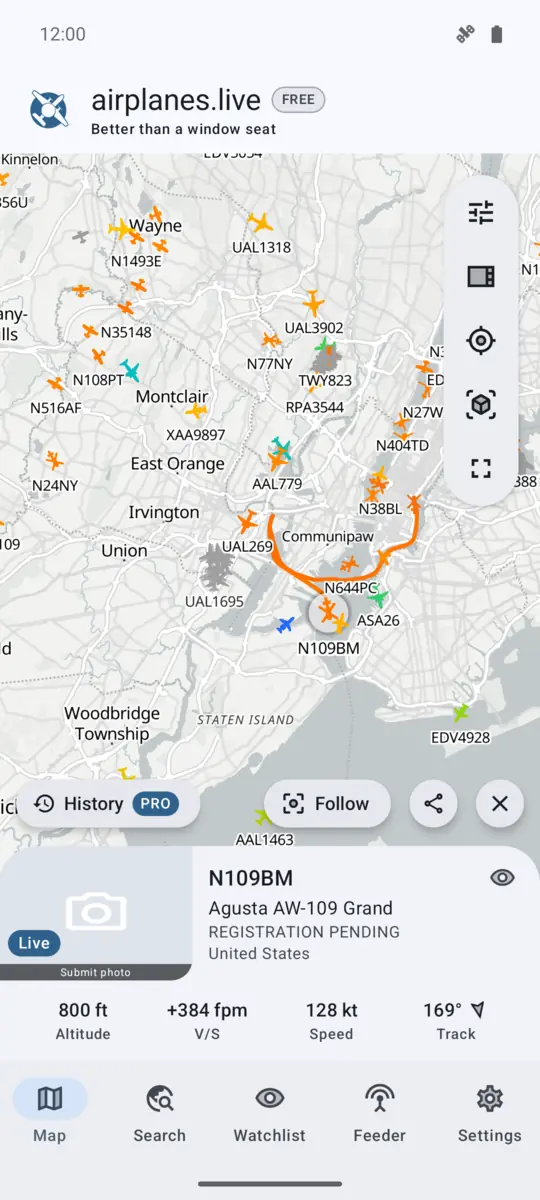
From the details you can:
- Follow the aircraft, so the map keeps it in view, until you tap Stop following.
- Add to watchlist. Switch the new watch to Notify: on to get an alert when the aircraft is spotted again. See Watchlist & alerts.
- Show in search, or share a link to the aircraft on globe.airplanes.live.
- Open its History, see below.
Map controls
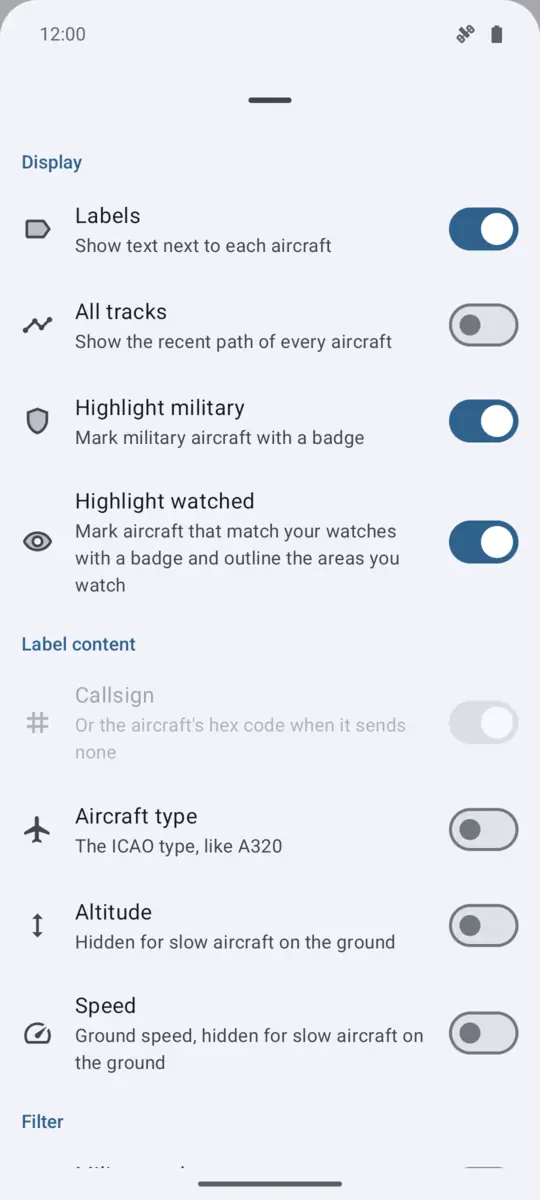
Display
- Labels: show text next to each aircraft.
- All tracks: show the recent path of every aircraft.
- Highlight military: mark military aircraft with a badge.
- Highlight watched: mark aircraft that match your watches with a badge and outline the areas you watch.
Label content chooses what the labels show: Callsign (or the hex code when the aircraft sends none), Aircraft type, Altitude and Speed. At least one stays on.
Filter
- Military only: hide aircraft that are not military. Selected and pinned aircraft stay visible.
- Aircraft kinds: show only the chosen kinds: Planes, Helicopters, Gliders, Balloons, Drones, Ground vehicles or Unknown. All kinds turns this filter off. Selected and pinned aircraft stay visible. While kinds are chosen, a chip on the map shows the kind, or how many kinds when several are chosen; tap it to turn the filter off.
- Only selected & pinned: hide all other aircraft. Select or pin aircraft first.
Selection
- Multi-select: tapping aircraft pins them instead of opening their details. You can pin up to 100 aircraft. Tap the “pinned” chip to clear them.
At the bottom, Open on airplanes.live opens the same view on globe.airplanes.live in your browser, and Reset map clears pins and selection and zooms out to the whole world.
The map’s base style is set in Settings › Map › Map style. Automatic (light or dark) follows the app’s theme.
History
History replays where an aircraft flew during the past 7 days. Step through days with Previous day and Next day, drag the Time of day slider, or tap Play and pick a playback speed.
History is part of the Pro tier. See Free and Pro.
Watch an area
Long-press the map to watch the area around that spot. The app opens Watch this area with the location filled in. To change an area you already watch, turn on Highlight watched and long-press the dot at the area’s center. Location watches are part of the Pro tier. See Watchlist & alerts.
AR view
The AR view shows the camera image with labels for the aircraft in that direction. It needs camera access to show the sky and location access to find aircraft near you. Tap a label to open that aircraft on the map.
Use the range slider to choose how far out to look, from 1 to 50 NM. Pro allows a larger range than Free.
If labels sit in the wrong direction, your compass needs calibrating: tap Help in the AR view and move your phone in a figure-8. See The AR labels point the wrong way.