 airplanes.live App
Feeders
A feeder is a receiver, usually a Raspberry Pi with an antenna, that sends the aircraft signals it receives to airplanes.live. The Feeder tab follows your feeders and warns you when one goes offline. To set one up, see the airplanes.live setup guide.
Adding a feeder here and linking it for Pro are separate steps. You can do either without the other.
Find your feeder ID
Every feeder has an ID, a UUID like 3f2c8a1e-9b7d-4e2a-8c1f-5d6e7a8b9c0d. On a feeder set up with the airplanes.live feed script, show it with:
cat /usr/local/share/airplanes/airplanes-uuid
On the airplanes.live feeder image, the file is /boot/airplanes-uuid.
Add a feeder
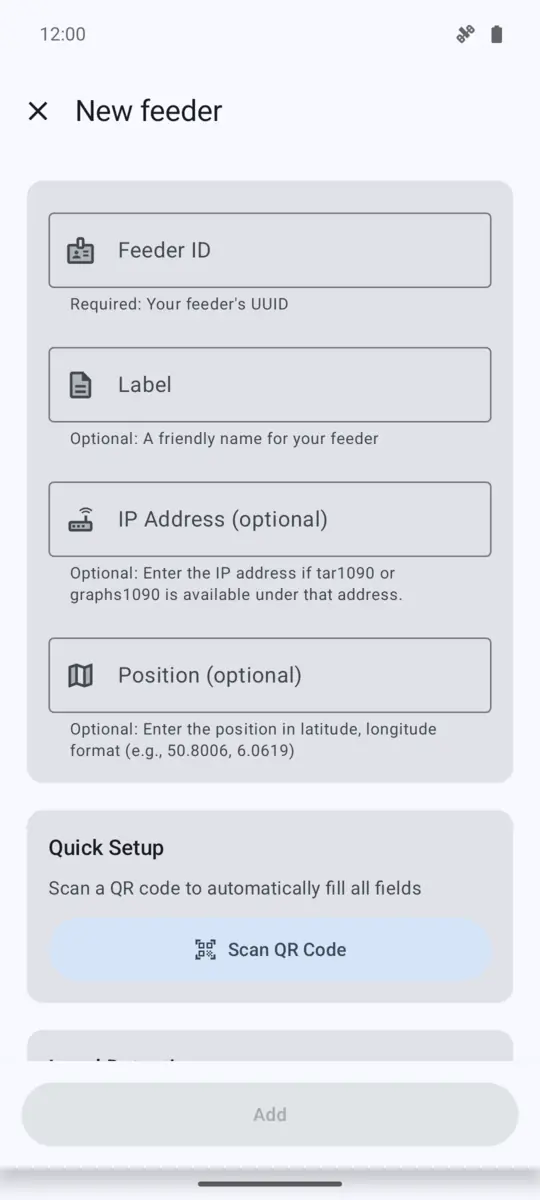
Tap the + button on the Feeder tab. There are three ways to fill in New feeder:
- Detect Local Feeder: finds feeders on the same network as your phone and fills in the fields. If it finds several, pick one.
- Scan QR Code: scans a feeder QR code made by the app on another device, see Share a feeder.
- Type the Feeder ID yourself.
Optional fields:
- Label: a name for the feeder. Without one, the app uses the feeder’s MLAT name from airplanes.live, or the last five characters of its ID.
- IP address: where tar1090 or graphs1090 runs for this feeder, like
192.168.0.42. The app then shows buttons to open them. - Position: latitude and longitude, like
50.8006, 6.0619.
Feeder list
The header shows whether all feeders are online. Each feeder shows its Beast message rate (MSG/s), data rate (KBit/s) and MLAT stats with the share of outliers and the number of peers. Sort the list by Label or Message rate.
Tap a feeder for more:
- Show feed on map: opens globe.airplanes.live in your browser, showing what this feeder receives.
- Rename and Set IP address.
- TAR1090 and GRAPHS1090: open the feeder’s own web pages. They appear once an IP address is set.
- Statistics: 30-day charts of the message rates and MLAT outliers.
- Generate QR Code, see below.
- Notify when offline, see below.
- Remove feeder.
Offline notifications
Notify when offline is on for new feeders. A feeder counts as offline when airplanes.live hasn’t seen it for 48 hours. The app then shows “Offline feeders detected” with the feeder’s name. Turning the setting on asks for notification permission on Android 13 and newer.
Tap Snooze on the notification to silence it until that feeder sends data again. The notification goes away by itself once the feeder is back.
The app checks your feeders in the background. Set how often in Settings › Feeder › Check interval, from 15 minutes to a day. The default is every 60 minutes.
Share a feeder
Generate QR Code shows a QR code with the feeder’s settings. Scan it with Scan QR Code in the app on another device to add the same feeder there.