 airplanes.live App
Watchlist & alerts
A watch keeps an eye on something for you: one aircraft, a flight, a squawk code or an area. The server’s watch list checks your watches, and the Watchlist tab shows each one with what the last check found. Turn on a watch’s notification and the app tells you when it shows up.
Add a watch
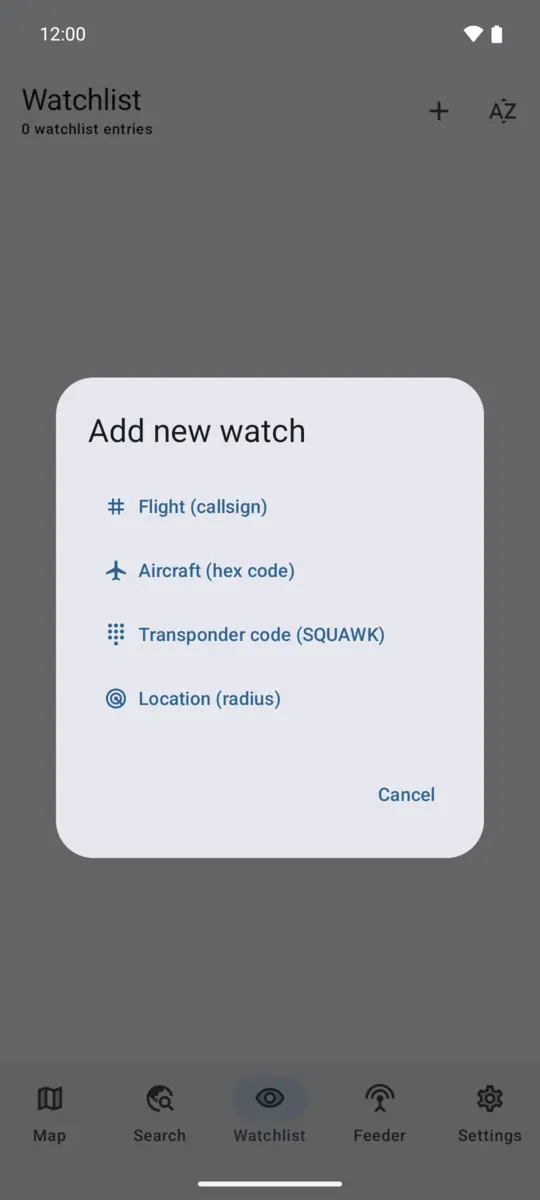
Tap the + button on the Watchlist tab and choose a type:
- Aircraft (hex code): one aircraft by its hex code, the ICAO 24-bit address like
3C6589. You can also tap Add to watchlist in an aircraft’s details on the map. - Flight (callsign): a flight by the callsign it broadcasts, like
DLH400. - Transponder code (SQUAWK): any aircraft transmitting a squawk code, like
7700for emergencies. - Location (radius): aircraft near a place, see below.
Each watch can have a note, so you remember why you added it.
Squawk and location watches are part of the Pro tier. See Free and Pro.
Location watches
A location watch counts the aircraft within a radius around a point. Enter coordinates or a place name and tap Resolve, or tap Use my location. Then give it a label and pick the radius. The smallest radius is 2 km; how large it can be depends on your plan.
To count only aircraft at certain altitudes, fill in Min altitude, Max altitude or both. A field left empty sets no limit. Altitudes go from 0 to 60,000 ft and use your Aircraft units: meters with Metric, feet otherwise.
You can also long-press the map to watch the area around that spot. Changing the area or the altitude range later, for example with Edit area in the watch’s details, starts the watch’s history over.
Get notified
Notifications are off for a new watch. Open the watch and tap Notify: off to switch it to Notify: on.
You get a notification when a watch goes from nothing to something: an aircraft is spotted, a callsign is airborne, a squawk code is being transmitted, or aircraft show up in your area. The notification repeats only after the watch has seen nothing in between. If something already matches when the watch is checked for the very first time, that first match stays quiet.
When many alerts come in at once, the app shows a few and sums up the rest as “Missed watchlist alerts”. Tap a notification to open its watch.
Alerts use the “Watchlist alerts” notification channel. Android must allow notifications for the app. See I don’t get alerts.
How often the app syncs
The server checks your watches, not the app. The app fetches the results in the background when it has a network connection, and that is when your alerts arrive. Set how often in Settings › Watchlist › Sync interval. The default is every 60 minutes. Free allows 60 minutes at the shortest, Pro 15 minutes.
The app also syncs when you open the Watchlist and the last sync is more than 15 minutes old. Pull down on the list to sync right away.
A watch the server hasn’t taken on yet shows “Waiting for server”. If the server’s watch list isn’t available, the Watchlist shows “Watches are not monitored right now”. Monitoring resumes once the app reaches the server.
Watch details
Tap a watch to see:
- Matching aircraft: what the last check found. Tap one to see its details.
- Activity, last 7 days: an hourly grid of when the watch saw something.
- Aircraft per hour, 30 days: for squawk and location watches, the most aircraft the server counted in each hour.
The More menu has Edit note, Edit area for location watches, and Delete watch.
Limits
The free tier checks a limited number of watches, shown as “X of Y free watches used”. Watches over the limit stay in your list as “Not checked, over your limit”. The first watches you added are the ones that get checked. Pro checks all of them.